Per-Slice Colors — Make Every Entry Unique
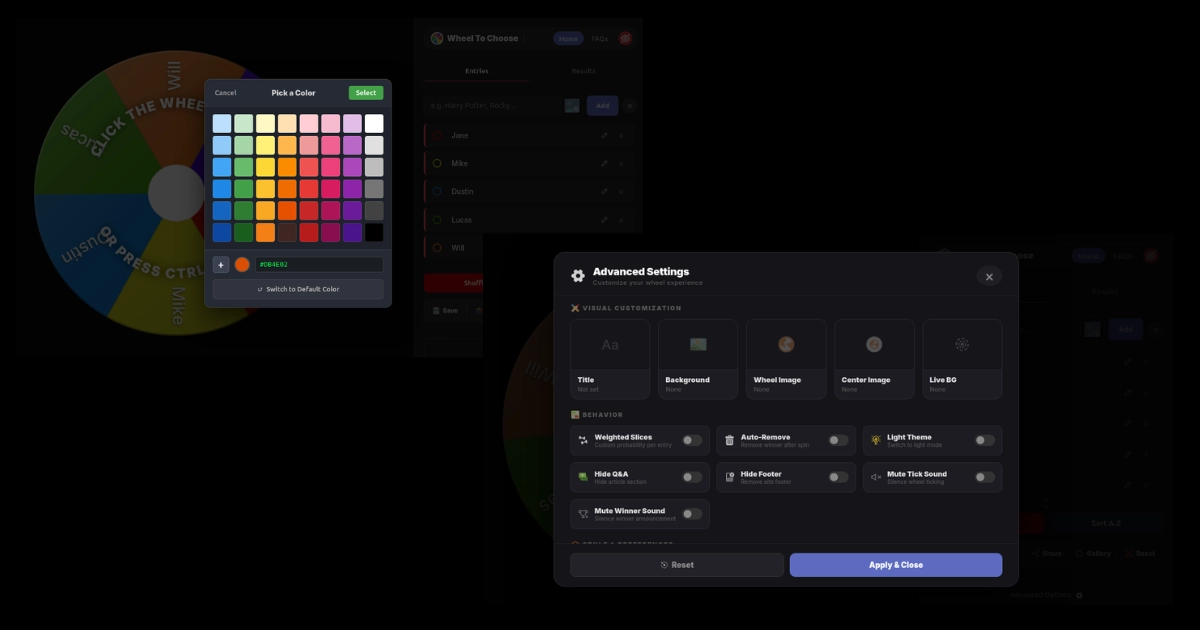
This is where most people start, and honestly it makes the biggest visual difference. Every entry on the wheel has a colored dot next to its name in the list. Click that dot and you'll open the full color picker — a grid of preset colors, a hex input field, and a button to open your system's native color picker for fine-tuning.
You can set a completely different color for every single slice. Running a Yes/No wheel? Green for Yes, red for No. Building a team picker? Color-code by department. Making a prize wheel for a stream? Gold for the big prize, silver for mid-tier, blue for consolation. The visual impact is immediate — viewers and participants can read the wheel at a glance without needing to squint at tiny text.
If you don't set a custom color, WheelToChoose assigns one from its built-in palette, which rotates through a balanced set of distinct hues. But the moment you start customizing, the defaults step aside and your choices take over.
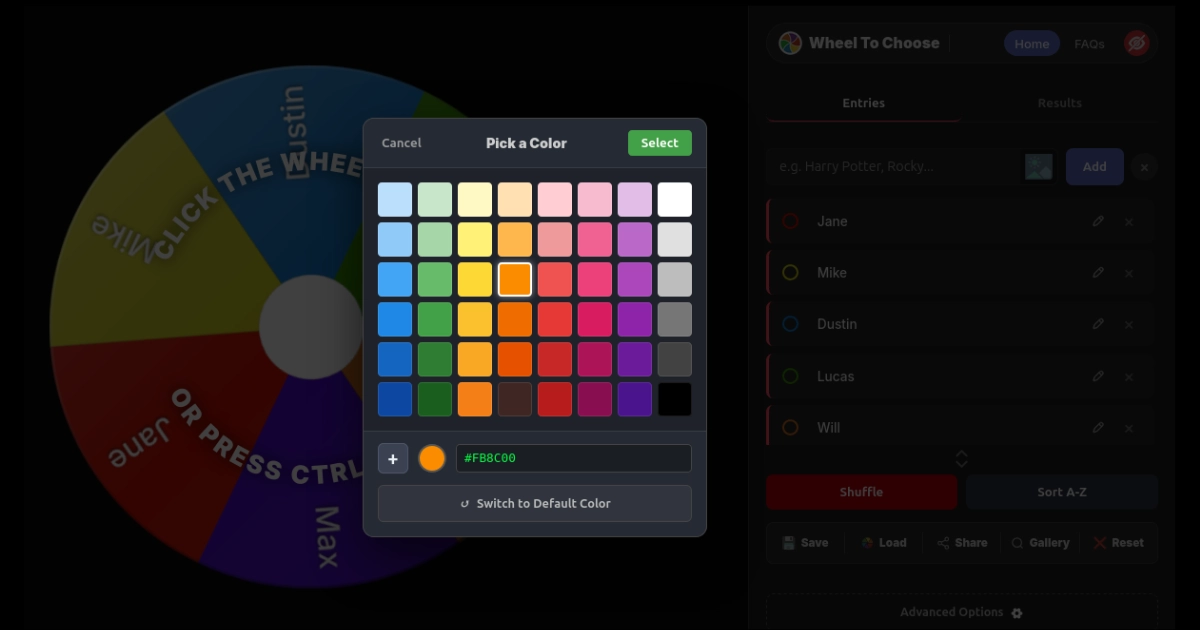
Changed your mind? Open the color picker for any entry and click "Switch to Default Color" at the bottom. The slice reverts to the auto-assigned palette color without affecting anything else.
Four Types of Image Uploads
Colors are great, but images take your custom spinning wheel to another level. WheelToChoose supports four distinct image types, each serving a different purpose:
Entry Images
Attach a photo to any individual entry using the upload icon next to the input field. The image displays inside that entry's slice and scales automatically. Max 2 MB per image. Perfect for student photos, product shots, or profile pictures.
Wheel Face Overlay
A single image that overlays the entire wheel surface. Open it from Advanced Options → Wheel Image. Choose from a curated gallery or upload your own (max 5 MB, ideal size 500×500 px). Great for branding — layer a logo pattern over all slices at once.
Center Logo
Place a custom image inside the wheel's center hub. It stays fixed while the wheel rotates around it. Open from Advanced Options → Center Image. Adjust the hub size from 0% (hidden) to 100% using the Center Size dropdown. Perfect for company logos or mascots.
Page Background
Set a full-page background image behind the entire app. Open from Advanced Options → Background. Choose from gallery presets or upload your own (max 5 MB, ideal 1920×1080 px). Formats: JPG, PNG, WebP, GIF.
Entry images are uploaded to the server and automatically deleted after 30 days. Wheel, center, and background images are also server-stored. If you save a .Wheel file and load it after 30 days, entry images may be missing. Wheels published to the Community Gallery retain their images permanently. See the Privacy Policy for details.
Themes, Light Mode & Live Backgrounds
Three Color Themes
Open Advanced Options and look for the Color Theme picker — three dots representing Default (indigo), Neon (green), and Gold (amber). Click one and the entire UI shifts — accent colors, borders, buttons, and highlights all update to match. The wheel slice palette adjusts too, so everything looks cohesive without manually recoloring individual entries.
Light & Dark Mode
Toggle Light Theme in the Behavior section of Advanced Options. The entire interface — controls panel, modals, footer, and all text — switches to a bright color scheme. This is especially useful when projecting in well-lit classrooms, conference rooms, or for streamers using a light-colored scene. The setting persists in local storage across sessions and works alongside all three color themes.
Live Background Animations
Open Advanced Options → Live BG to browse canvas-based visual effects — particles, waves, geometric patterns — that play behind the wheel in the wheel panel. Each option shows a live mini-preview so you can see the effect before applying. They run on a separate canvas layer at 30 FPS and are optimized to keep the wheel animation butter-smooth. Remove one anytime by clicking the × on the "Live BG" tag in the active features list.

Winner Sounds & Celebration Styles
Ten Winner Sounds
When the wheel stops and a winner is announced, a sound plays. You get ten options: Default, Applause, Fanfare, Bell, Ta-da!, Air Horn, Cheer, Magic, Game, and You Win. Preview any sound directly from the dropdown in Advanced Options using the ▶ button — no need to spin the wheel to hear it.
Independent Mute Controls
Two separate toggles let you control audio precisely. Mute Tick Sound silences the click-click-click as the wheel passes each slice (generated via the Web Audio API for zero-latency playback). Mute Winner Sound silences only the announcement sound. You can mute one, both, or neither.
Three Celebration Styles
When a winner is picked, you can trigger Confetti (colorful paper burst), Fireworks (explosive particle effects), or None (clean result, no animation). All three work on the main page and in the Stream Mode overlay. For younger audiences or hype moments, confetti is the crowd favorite. For professional settings, "None" keeps things minimal.
If you're using Stream Mode, the winner sound and celebration animation play inside the Browser Source overlay — your viewers hear and see them directly. Air Horn and Fanfare are particularly popular for Twitch giveaways.
Behavior Settings — Weights, Auto-Remove & More
Weighted Slices
This is the feature that turns a basic spinner into a proper wheel maker. Enable Weighted Slices in Advanced Options and each entry gets + and − controls to adjust its weight from 1 to 100. A weight of 3 makes that slice three times wider — and three times more likely to be picked — than a weight of 1. The visual sizing updates in real time so you can see the probability distribution on the wheel itself.
Use cases are everywhere: reward subscribers with higher odds in stream giveaways, give a "Grand Prize" entry a tiny weight so it's rare but possible, or create a biased Yes/No wheel where Yes has a 75% chance. The cryptographic RNG (crypto.getRandomValues) still determines the outcome — weights only change the probability distribution, not the randomness quality.
Auto-Remove Winners
Toggle Auto-Remove and each winner is automatically taken off the wheel after being selected. No manual cleanup needed. Perfect for raffles, tournament brackets, and classroom attendance where nobody should be picked twice. If you prefer manual control, the winner popup always offers both Remove & Close and Keep & Close buttons.
Spin Duration
Three options — Short, Medium, and Long — control how long the physics-based spin animation runs. Short is great for rapid-fire picks during quiz games. Long builds maximum suspense for giveaways. Medium is the default sweet spot.
Center Circle Size
Control the white hub in the middle of the wheel with the Center Size dropdown: Hidden (0%), 25%, 50%, 75%, or 100%. If you've uploaded a center logo, this controls how large it appears. Set to Hidden for a full-bleed wheel with no center gap.
Hide Q&A and Footer
Two toggles let you hide the Q&A article section and the site footer for a cleaner view. Useful when projecting or screen-sharing — viewers see only the wheel and controls.
Every Customization Option at a Glance
| Option | Where to Find It | What It Does |
|---|---|---|
| Slice Colors | Color dot in names list | Full hex picker per entry — presets, custom, or system picker |
| Entry Images | 📷 icon next to input | Photo inside individual slices (max 2 MB) |
| Wheel Image | Advanced → Wheel Image | Full-face overlay on the wheel (gallery + upload, max 5 MB) |
| Center Image | Advanced → Center Image | Fixed logo in the hub (gallery + upload, max 5 MB) |
| Background | Advanced → Background | Full-page background (gallery + upload, max 5 MB) |
| Live BG Animation | Advanced → Live BG | Canvas-based particle/wave effects behind wheel |
| Color Theme | Advanced → Color Theme | Default (indigo), Neon (green), Gold (amber) |
| Light / Dark Mode | Advanced → Light Theme | Switches entire UI to bright or dark scheme |
| Winner Sound | Advanced → Winner Sound | 10 options with ▶ preview button |
| Celebration Style | Advanced → Celebration | Confetti, Fireworks, or None |
| Spin Duration | Advanced → Spin Duration | Short, Medium, or Long animation length |
| Center Size | Advanced → Center Size | Hub radius: Hidden, 25%, 50%, 75%, 100% |
| Weighted Slices | Advanced → Weighted Slices | Per-entry weight from 1–100 with + / − controls |
| Auto-Remove | Advanced → Auto-Remove | Winner removed from wheel after each spin |
| Wheel Title | Advanced → Title (or click title) | Custom title above the wheel (max 40 chars) |
Save, Load & Share Your Custom Wheel
You've spent time customizing your wheel — don't lose it. WheelToChoose gives you three layers of persistence:
Auto-Save (Local Storage)
Everything saves automatically to your browser's local storage. Close the tab, come back tomorrow — it's all there. No action needed.
Portable .Wheel Files
Click Save to download a .Wheel file with every detail — names, colors, images, weights, title, theme, and settings. Load it on any device with the Load button. Create separate files for different use cases: team-raffle.wheel, classroom-period3.wheel, stream-giveaway.wheel.
Share & Gallery
Click Share to generate a unique URL anyone can open and spin. Publish to the Community Gallery for public discovery. Built-in buttons share directly to WhatsApp, Facebook, X, and Snapchat.
The .Wheel file captures everything — not just names, but every custom color, every image reference, every weight value, the selected theme, sound choice, celebration style, spin duration, center size, title, and all toggle states. When you load it, the wheel is restored to the exact configuration you saved.
Frequently Asked Questions
Can I set a different color for every slice?
Yes. Click the colored dot next to any entry in the names list to open the full color picker. Choose from preset colors, enter a hex code manually, or use the native system picker for fine-tuning. Each slice gets its own independent color that persists in local storage and .Wheel save files.
What image uploads does WheelToChoose support?
Four types: per-entry slice images (max 2 MB each), a wheel-face overlay, a center hub logo, and a page background. Each accepts JPG, PNG, WebP, and GIF. The wheel, center, and background options each have a curated gallery plus a custom upload button (max 5 MB, max dimensions 8000×8000 px).
How do weighted slices work?
Enable Weighted Slices in Advanced Options. Each entry gets + and − controls to set a weight from 1 to 100. A weight of 3 makes that slice three times larger and three times more likely to be selected. The cryptographic RNG still determines the outcome — weights only change the probability distribution, not the randomness quality.
Will my customizations be saved?
Yes — three ways. Auto-save keeps everything in browser local storage automatically. Save downloads a portable .Wheel file with all settings included. Share generates a permanent URL others can open. For important configurations, always download a .Wheel backup file.
Can I share my customized wheel with others?
Yes. Click Share to generate a unique link anyone can view and spin — your entire customization is preserved. Publish it to the Community Gallery for public discovery. Built-in social buttons share directly to WhatsApp, Facebook, X, and Snapchat. You can also send a .Wheel file to someone and they can load it on their device.
The Bottom Line
Most "wheel maker" tools stop at letting you type names and pick a color palette. WheelToChoose goes significantly deeper — per-slice colors with full hex control, four layers of image uploads, three color themes, light and dark mode, live canvas animations, ten winner sounds with preview, three celebration styles, weighted probability slices, adjustable center sizing, and a portable save system that captures every single detail.
The best part is that none of this requires an account, a download, or any money. Open the site, click Advanced Options, and start building. Save your creation as a .Wheel file, share it as a link, or publish it to the Community Gallery. Whether you're building a branded giveaway wheel for your Twitch stream, a color-coded classroom picker, or just a ridiculous "what's for dinner" spinner with food photos on every slice — you've got every tool you need right here.
Now go make something that doesn't look like every other boring spinner on the internet.
Start Customizing Your Wheel Right Now
Open the wheel maker, click Advanced Options, and build something uniquely yours.
Open WheelToChoose Free · No signup · Every feature included Open WheelToChoose