Why a Giveaway Wheel Beats Every Other Method
Let's be honest — typing !giveaway into a chatbot and having it spit out a random username is about as exciting as watching paint dry. Your viewers waited 45 minutes for this moment and they get... a text message in chat. Nobody clips that. Nobody talks about it afterward. It's functional, sure, but it's dead content.
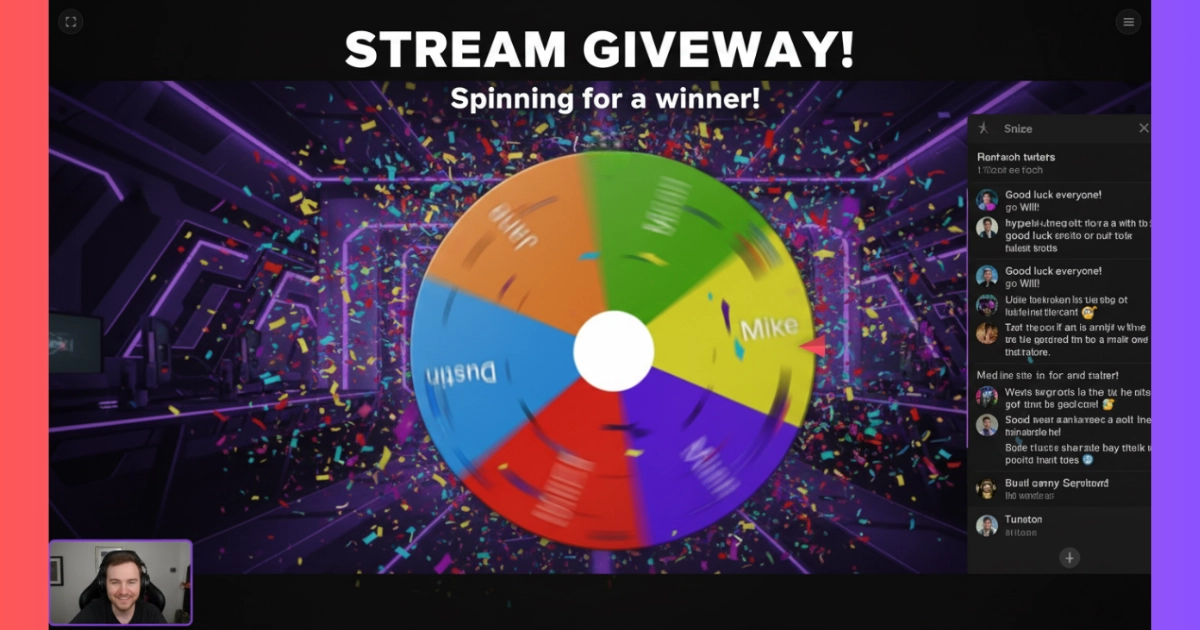
A giveaway wheel changes the entire dynamic. There's a physical object spinning on screen. Viewers can see their name on it. The wheel slows down, and chat starts losing their minds — "IT'S PASSING MY NAME, IT'S PASSING MY NAME" — and then it stops, confetti explodes, a winner sound plays, and someone's screaming in all caps. That's a moment. That's what gets clipped. That's what brings people back for the next stream.
Beyond entertainment, a wheel is also visibly fair. Chat can see that every name takes up the same amount of space. There's no hidden algorithm, no suspicious "random" picks. The wheel uses the Web Crypto API (crypto.getRandomValues) — the same cryptographic randomness that protects bank transactions — and the result is determined before the animation even starts. You can tell your chat that with a straight face because it's actually true.
WheelToChoose determines the winner using cryptographic-grade randomness before the spin animation begins. The physics-based deceleration then lands on that pre-determined result. Everything runs locally in your browser — no server decides the outcome, and there's zero way to influence it by timing your click.
How to Add a Giveaway Wheel to OBS in 5 Steps
WheelToChoose has a dedicated Stream Mode built specifically for this. It gives you a transparent Browser Source URL that shows only the wheel — no panels, no buttons, no ads. Here's the exact setup:
Open Stream Mode
Go to WheelToChoose.com/streaming.html. No signup needed. You'll see a dashboard with streaming controls at the top.
Copy the Browser Source URL
A unique overlay URL is generated automatically with a 16-character stream key. Copy it using the Copy button. This URL is your private link — don't share it publicly.
Add Browser Source in OBS
In OBS Studio (or Streamlabs, XSplit, etc.), add a new Browser Source. Paste the URL. Set the size to 800×800 pixels. The background is fully transparent so it blends into any stream layout.
Add Viewer Names to the Wheel
Back on the Stream Mode dashboard, type names and click Add — or paste a comma-separated list of subscriber names. Customize colors, upload profile pictures, or load a pre-made wheel from the Gallery.
Push Changes and Spin
Click Push Changes to Overlay, then in OBS right-click the source → Refresh. Click the wheel to spin. Your viewers see only the wheel, the animation, confetti, and the winner announcement.
Enable "Refresh browser when scene becomes active" in the Browser Source properties so the wheel auto-updates when you switch to your giveaway scene. Position the wheel off-center if you want to keep your camera visible alongside it. After each spin, changes auto-push to the overlay so the stream stays in sync.
What Stream Mode Actually Does
Stream Mode isn't just the regular wheel on a different URL. It's a purpose-built streaming dashboard with features that matter mid-broadcast:
Transparent Background
The Browser Source overlay has a fully transparent background. No white boxes, no UI chrome — just the wheel floating on your stream layout.
Zero Ads on Overlay
The overlay is completely clean. No ads, no buttons, no panels. Viewers see nothing but the wheel, spin animation, and winner announcement.
Push Changes Live
Edit names, add entries, remove winners — then click Push Changes and refresh in OBS. The overlay updates instantly without restarting the source.
Private Stream Key
Each session gets a unique 16-character key. Only you control what appears on the overlay. Data auto-deletes after 7 days of inactivity.
Auto-Remove Winners
Enable Auto-Remove so each winner vanishes from the wheel after being picked. Perfect for multi-round giveaways where nobody should win twice.
Celebrations & Sounds
Confetti, fireworks, or no animation. Ten winner sounds including Air Horn, Fanfare, and Cheer. All visible and audible in the overlay.
The Browser Source URL contains your stream key. Anyone with that URL could see your overlay. Don't paste it in chat or share it on social media. If compromised, simply reload the Stream Mode page to generate a new key.
How to Turn a Giveaway Into a Chat Event
The wheel handles the randomness. Your job is to turn it into entertainment. Here are tactics that actually work:
Build Anticipation Before the Spin
Don't just spin without warning. Tell chat you're doing a giveaway in 10 minutes. Put a countdown on screen. Let names accumulate visually on the wheel — viewers love watching their name appear on a slice. The longer you build up, the more engaged chat is when the moment finally arrives.
Narrate the Spin
This sounds obvious but most streamers just click and wait in silence. Call out names as the wheel passes them. React to near-misses. "OH it almost landed on — no, it's still going!" Your energy is contagious. If you're hype, chat is hype.
Run Multiple Rounds
One spin is fun. Five spins is an event. Enable Auto-Remove so each winner is taken off the wheel, and the tension increases with each round as the remaining names shrink. Give different prizes per round — first place gets the big prize, consolation prizes for later picks.
Use Weighted Slices for Subscriber Perks
Want to reward your most loyal viewers? Enable Weighted Slices in Advanced Options. Give subscribers a weight of 3, Tier 2 subs a weight of 5, and regular viewers a weight of 1. The wheel visually shows larger slices for higher-tier supporters, which incentivizes subscriptions while still giving everyone a fair shot.
When the wheel is almost stopped and clearly about to land on someone, lean into the mic and say "I think it's gonna be..." and then trail off. Chat will absolutely explode. Works every single time. You're not manipulating the result — the winner is already locked in by the crypto engine — you're just maximizing the entertainment value of the reveal.
Tips for Every Streaming Platform
The core setup is the same everywhere, but each platform has quirks worth knowing about:
Twitch
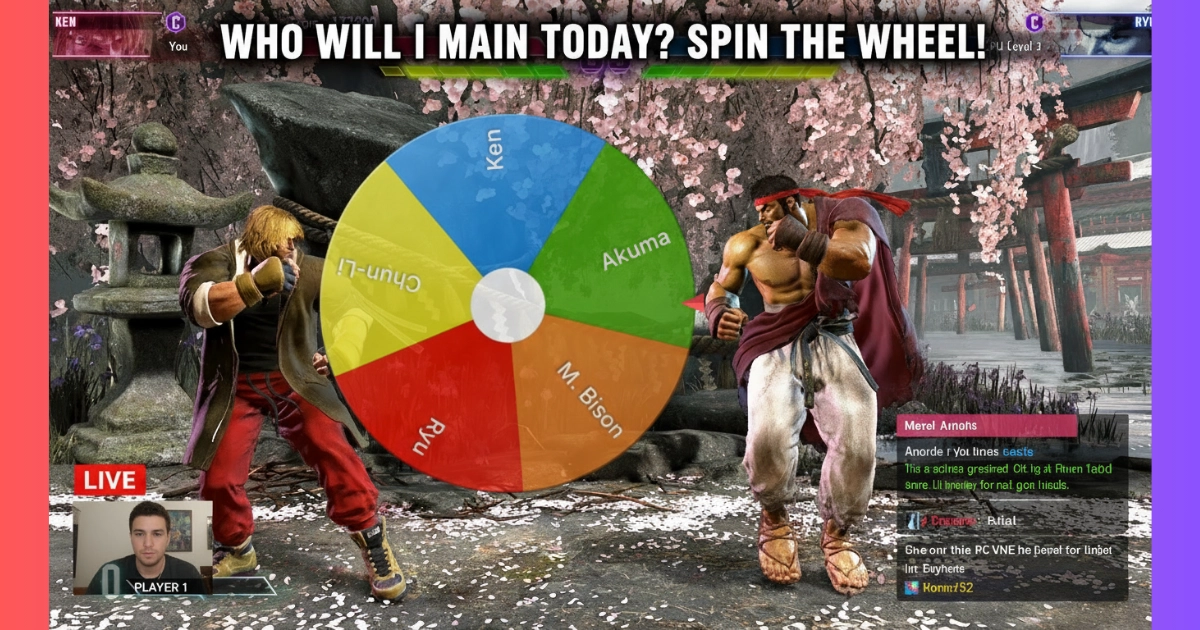
Twitch viewers expect giveaways and they know what a wheel looks like. Use channel point redemptions as your entry method — viewers spend points to get on the wheel, which creates natural scarcity and hype. Stream Mode's transparent overlay sits cleanly on top of your game footage. Copy eligible usernames from chat, paste them comma-separated, and you're set. Enable Auto-Remove for multi-prize raffles during sub-a-thons.
YouTube Live
YouTube's Super Chat and membership system work great as giveaway qualifiers. Add Super Chat senders to the wheel as they come in, building the list live on camera. YouTube streams tend to have more casual viewers, so explain briefly that the wheel uses cryptographic randomness — it builds trust. The PDF export is useful for documenting winners in VOD descriptions.
TikTok Live
TikTok lives are fast-paced and attention spans are short. Keep the wheel visible for a shorter window — spin within 60 seconds of announcing the giveaway. Use bold slice colors (the Neon theme works great here) so the wheel is readable on small phone screens. TikTok Studio supports Browser Sources just like OBS.
Kick & Discord
Kick streamers can use the exact same OBS setup. For Discord movie nights or game nights, screen-share the browser tab directly — the wheel, sounds, and confetti all display correctly for everyone in the voice channel. No Browser Source needed.
Features Streamers Actually Need
Viewer Profile Pics
Upload profile images per entry. Viewer avatars display inside slices for a personal touch.
Save Giveaway Configs
Download a .Wheel file with all names and settings. Load it next stream in one click.
PDF Winner History
Export every pick as a formatted PDF. Post it in Discord for transparency.
Color Themes
Default, Neon, and Gold themes. Match your stream's branding with per-slice colors and custom logos.
Shareable Wheels
Share your giveaway wheel to the Community Gallery. Viewers can find and spin it themselves.
Weighted Entries
Give subscribers or donators extra weight. The odds scale visually so chat sees it's fair.
Frequently Asked Questions
Does the overlay show ads or UI panels?
No. The Stream Mode Browser Source overlay is completely clean — it shows only the wheel, spin animation, confetti or fireworks, and the winner announcement. No panels, no buttons, no ads. Your viewers see nothing but the wheel on a transparent background.
Is the giveaway wheel truly random and fair?
Yes. WheelToChoose uses the Web Crypto API (crypto.getRandomValues) — the same cryptographic-grade randomness used in encryption. The winner is determined before the animation starts, so there's zero way to rig it. You can tell your chat that honestly.
What streaming software is supported?
Any software that supports Browser Sources — OBS Studio, Streamlabs, XSplit, Twitch Studio, TikTok Studio, YouTube Live, Discord, Kick, and Prism Live. The overlay URL is a standard web page with a transparent background, so it works universally.
Can I update the wheel during a live stream?
Yes. Edit your wheel on the Stream Mode dashboard — add names, remove entries, change settings — then click Push Changes to Overlay. In OBS, right-click the Browser Source and select Refresh. Viewers see the updated wheel immediately. After each spin, changes auto-push so the overlay stays in sync.
Can winners be removed so nobody wins twice?
Yes. Enable Auto-Remove in Advanced Options and each winner is taken off the wheel right after being picked. Changes auto-push to the overlay so the stream always shows an up-to-date wheel. You can also choose manually each time — the winner popup has both Remove & Close and Keep & Close buttons.
The Bottom Line
A giveaway wheel isn't just a randomizer — it's a content moment. It turns a routine winner announcement into something chat actually watches, clips, and talks about. The spinning, the near-misses, the confetti explosion — that's peak stream entertainment, and it costs you exactly zero dollars and about three minutes of setup.
WheelToChoose's Stream Mode was built specifically for this. Transparent overlay, no ads on the viewer side, cryptographic randomness your chat can trust, auto-removing winners for multi-round draws, and a push-to-update system so you never have to restart your Browser Source mid-stream. It works with OBS, Streamlabs, XSplit, Twitch Studio, TikTok Studio, and basically anything else that supports Browser Sources.
Next time you're planning a sub goal reward, a follower milestone giveaway, or just a random act of generosity for your community — skip the chatbot text and give them a show. Spin the wheel. Let chat lose their minds. Clip it. That's the content.
Set Up Your Giveaway Wheel Right Now
Open Stream Mode, copy the overlay URL, and run your first giveaway in under 3 minutes.
Open Stream Mode Free · No signup · Works with OBS, Streamlabs & more Open Stream Mode